How I Use Multiple Claude Code Accounts on My Mac
Switch between work and personal Claude Code accounts on macOS without logging in and out every time. Here is the simple Zsh setup I use.
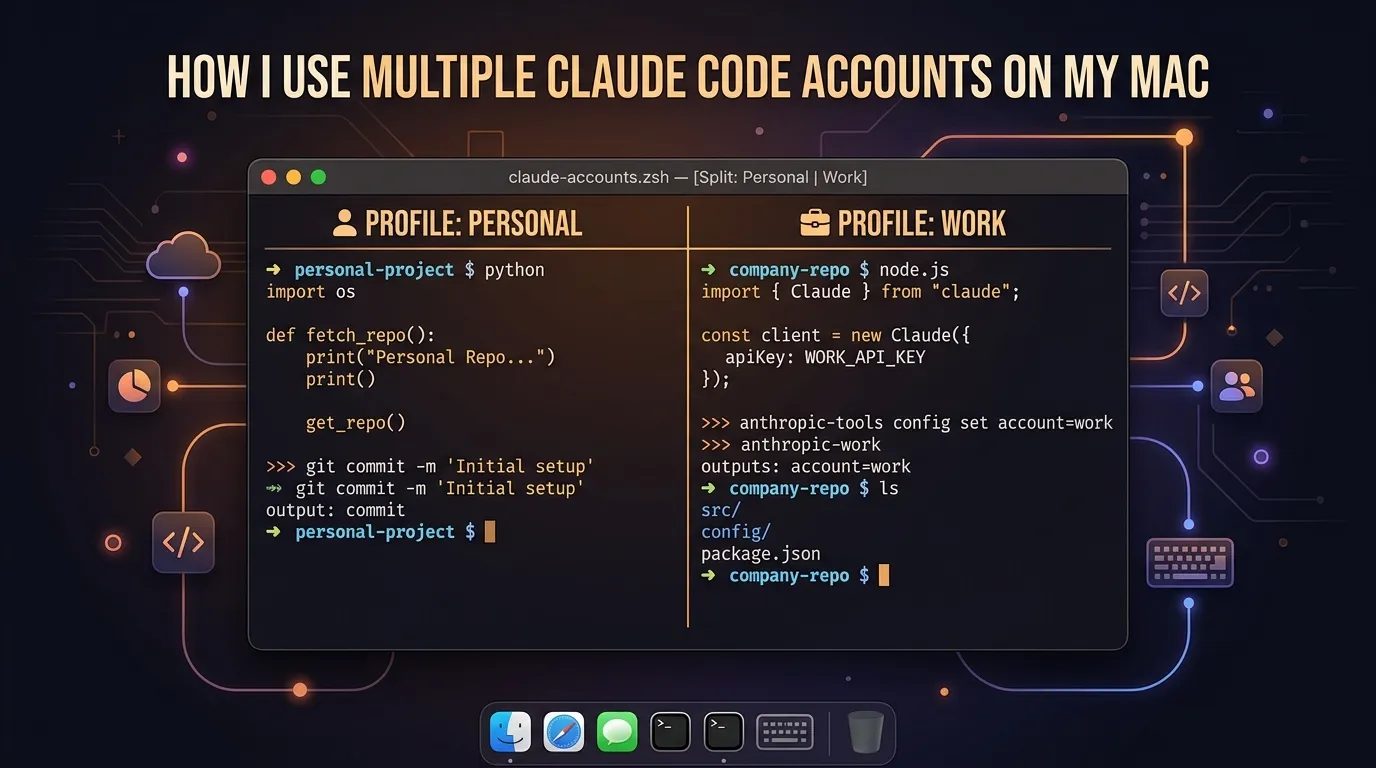
If you use Claude Code for both your day job and personal projects, you’ve probably run into the account switching headache.
By default, Claude Code stores its authentication session and settings in a single directory in your home folder (~/.claude.json and ~/.claude). If your company provides a Claude seat or Anthropic API workspace, but you also have a personal Claude Pro or Max subscription for side projects, running /login back and forth every time you switch repositories gets old fast.
Luckily, Claude Code supports an environment variable called CLAUDE_CONFIG_DIR. With two directories and two Zsh aliases, you can run separate accounts side-by-side without them ever stepping on each other.
Here is how I set it up on macOS.
Step 1: Create isolated config directories
Create dedicated folders in your home directory for each profile:
mkdir -p ~/.claude-personal ~/.claude-workEach folder will hold its own auth token, session history, and project preferences.
Step 2: Add aliases to ~/.zshrc
Open your Zsh profile in your text editor of choice:
nano ~/.zshrcAdd these two aliases to point CLAUDE_CONFIG_DIR to the respective directory:
# Claude Code multi-account profiles
alias claude-personal="CLAUDE_CONFIG_DIR=~/.claude-personal claude"
alias claude-work="CLAUDE_CONFIG_DIR=~/.claude-work claude"
Save the file and reload your shell configuration:
source ~/.zshrcBecause these are standard shell aliases, any extra flags you pass (like claude-work --dangerously-skip-permissions or claude-personal "explain this file") get forwarded directly to the underlying claude binary.
Step 3: Authenticate each profile once
Now authenticate both profiles once. They will stay logged in independently.
1. Log in to your personal account:
In your terminal, run:
claude-personalInside the Claude Code prompt, type:
/loginComplete the browser sign-in using your personal email or Anthropic account. Once done, exit the session (Ctrl+C or type /exit).
2. Log in to your work account:
Open a new terminal tab or window and run:
claude-workInside the prompt, type:
/loginSign in with your company SSO or work email.
That’s it. From now on:
- Use
claude-personalwhen hacking on side projects. - Use
claude-workwhen working inside your company repositories.
Useful extras
1. Verifying which account you are on
If you ever want to double-check which account is active in your current session, you can run /cost or /config inside the CLI, or inspect the stored config file directly:
cat ~/.claude-personal/.claude.json | grep -i email
cat ~/.claude-work/.claude.json | grep -i email
2. Auto-switching with direnv (Optional)
If you keep your code strictly organized into folders like ~/work/ and ~/personal/, you can use direnv so you don’t even have to remember the alias name.
In your work project root, create a .envrc file:
export CLAUDE_CONFIG_DIR="$HOME/.claude-work"Run direnv allow, and standard claude commands in that folder will automatically use your work profile.
Summary
Setting up multiple accounts takes less than two minutes:
mkdir -p ~/.claude-personal ~/.claude-work- Map
CLAUDE_CONFIG_DIRin~/.zshrcto distinct aliases. - Run
/loginonce on each alias.
No session overrides, no token conflicts, and clean separation between work billing and personal subscriptions.